
INTRO
A scalable design system
A growing tech brand, Elevate UI, needed a streamlined design system to unify its expanding product suite. Their fragmented setup slowed collaboration and development. We created a scalable, cohesive system to boost efficiency and consistency.
DESIGNS
Designing a Unified System
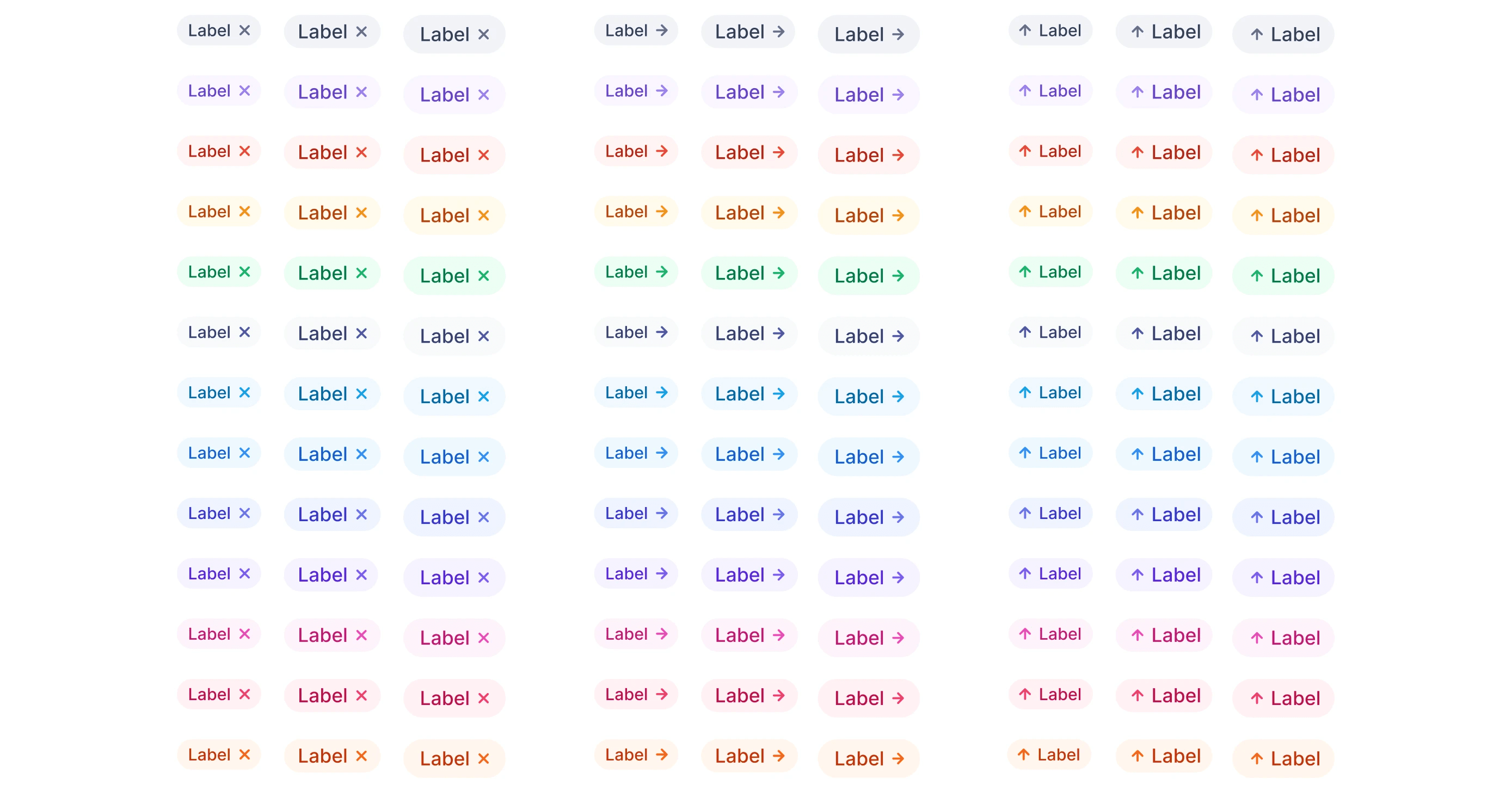
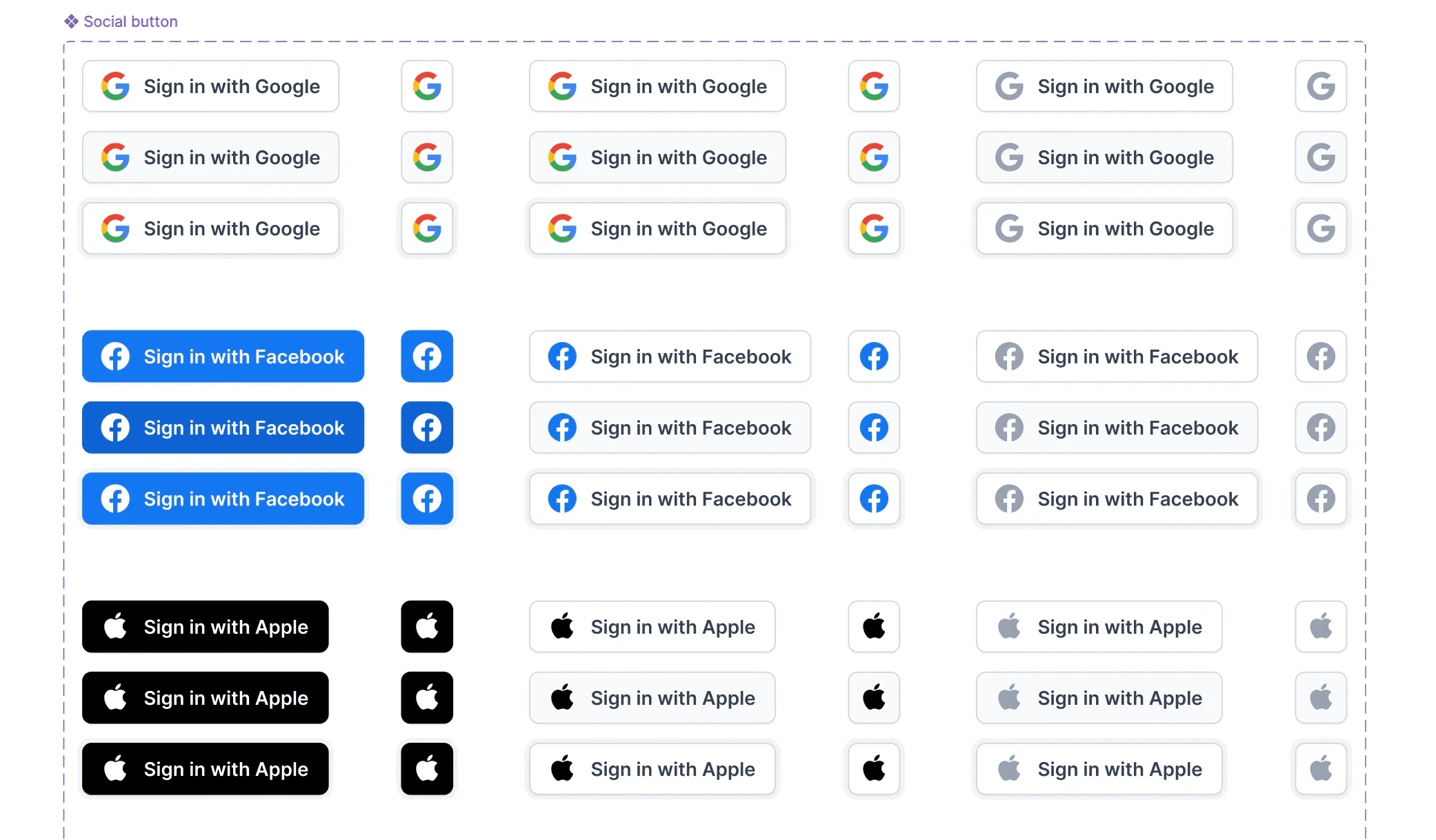
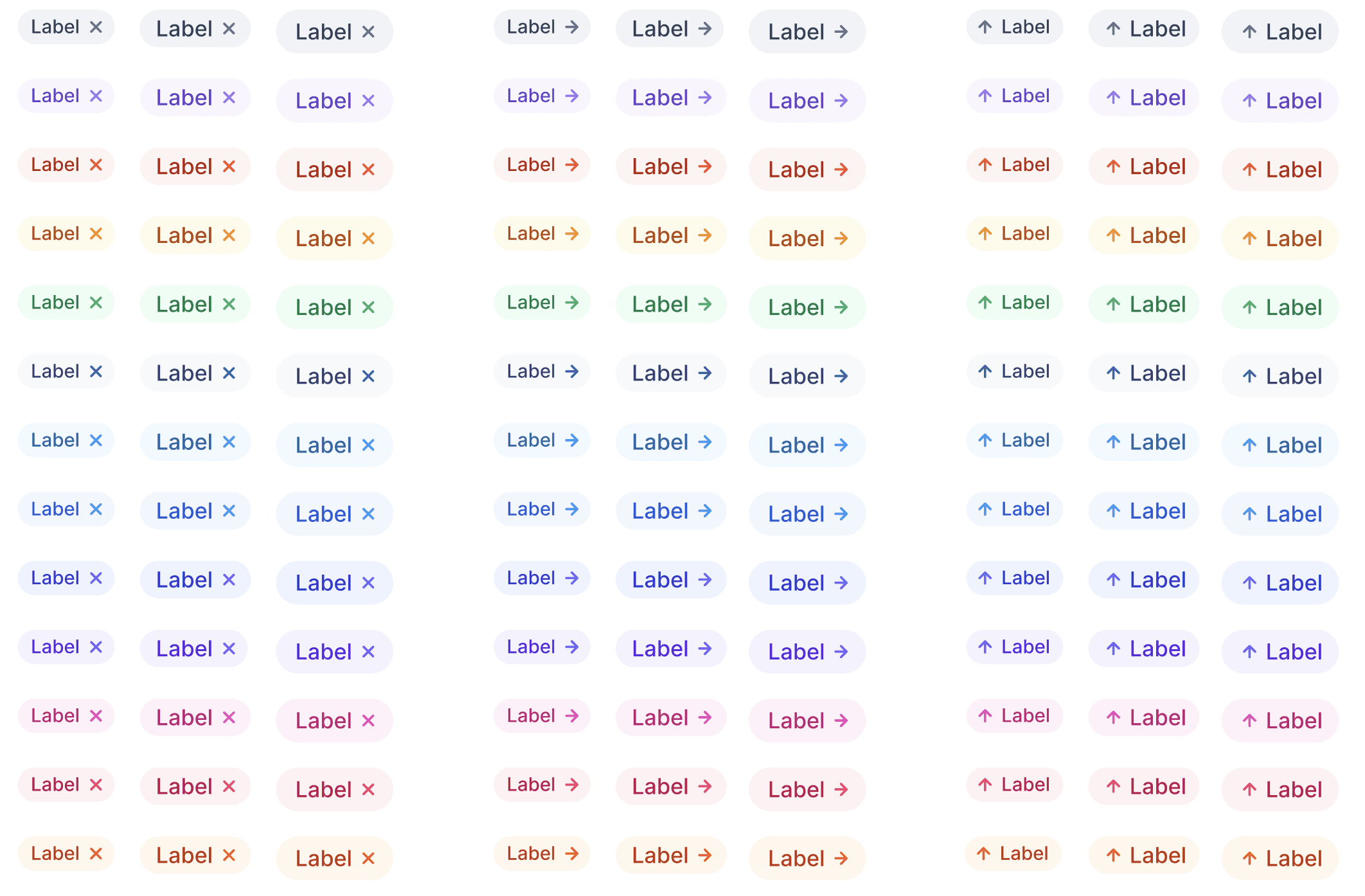
To create a seamless design system, we focused on modularity, scalability, and accessibility. Standardized components, clear typography, and well-defined colors ensured a cohesive and efficient workflow for designers and developers alike.

DISCOVERY
Understanding the problems
Elevate UI faced major inefficiencies due to inconsistency in design and development. The lack of unified styles and documentation led to slower iterations and misalignment across teams.
Inconsistent styles
Multiple button styles, colors, and font sizes across products.
Slow Development
Components had to rebuilt repeatedly causing delays.
No Documentation
Teams struggled with guidelines, and misalignment.
IDEATION
From Concepts to Solutions
Our approach was to define a strong foundation that could evolve with the brand. We structured the design system to be adaptable, ensuring long-term scalability while keeping it intuitive for the team.
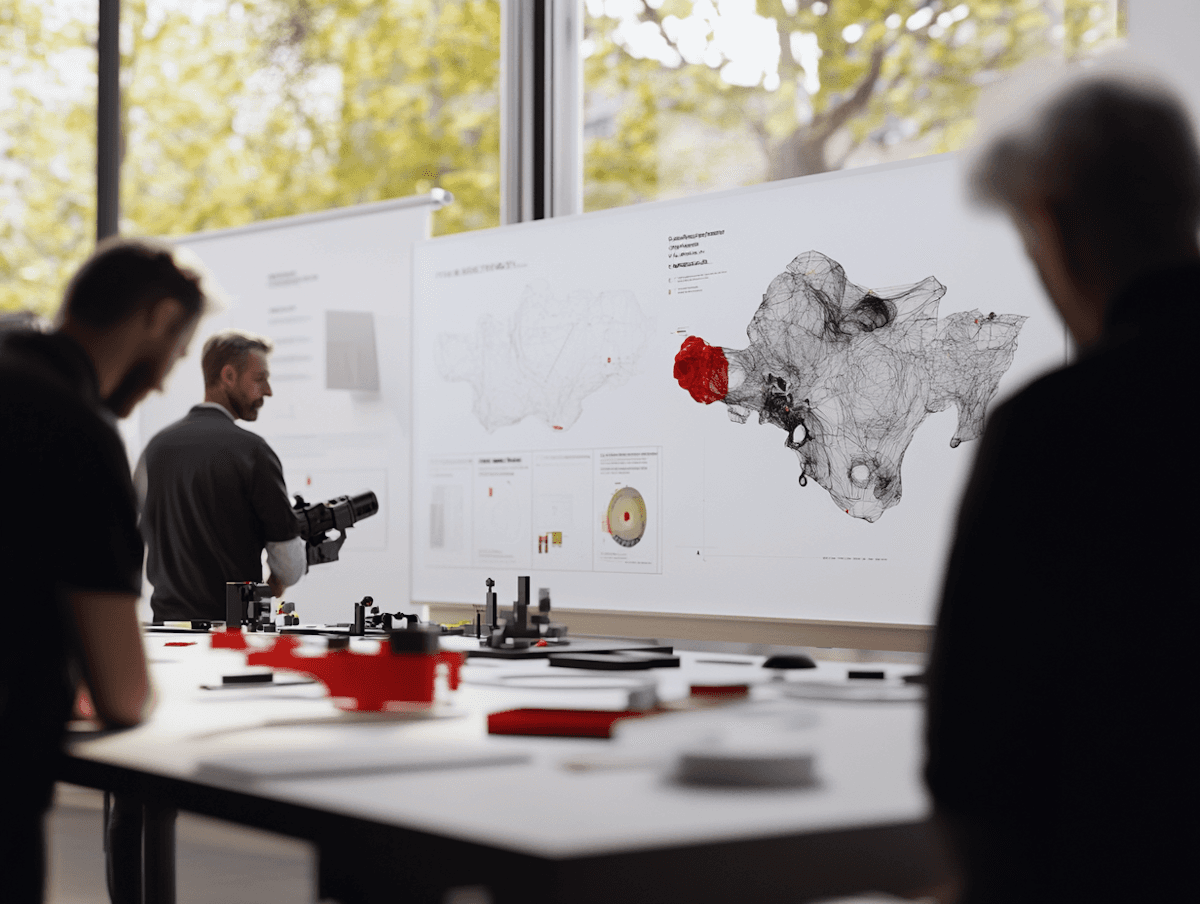
Ideation workshop
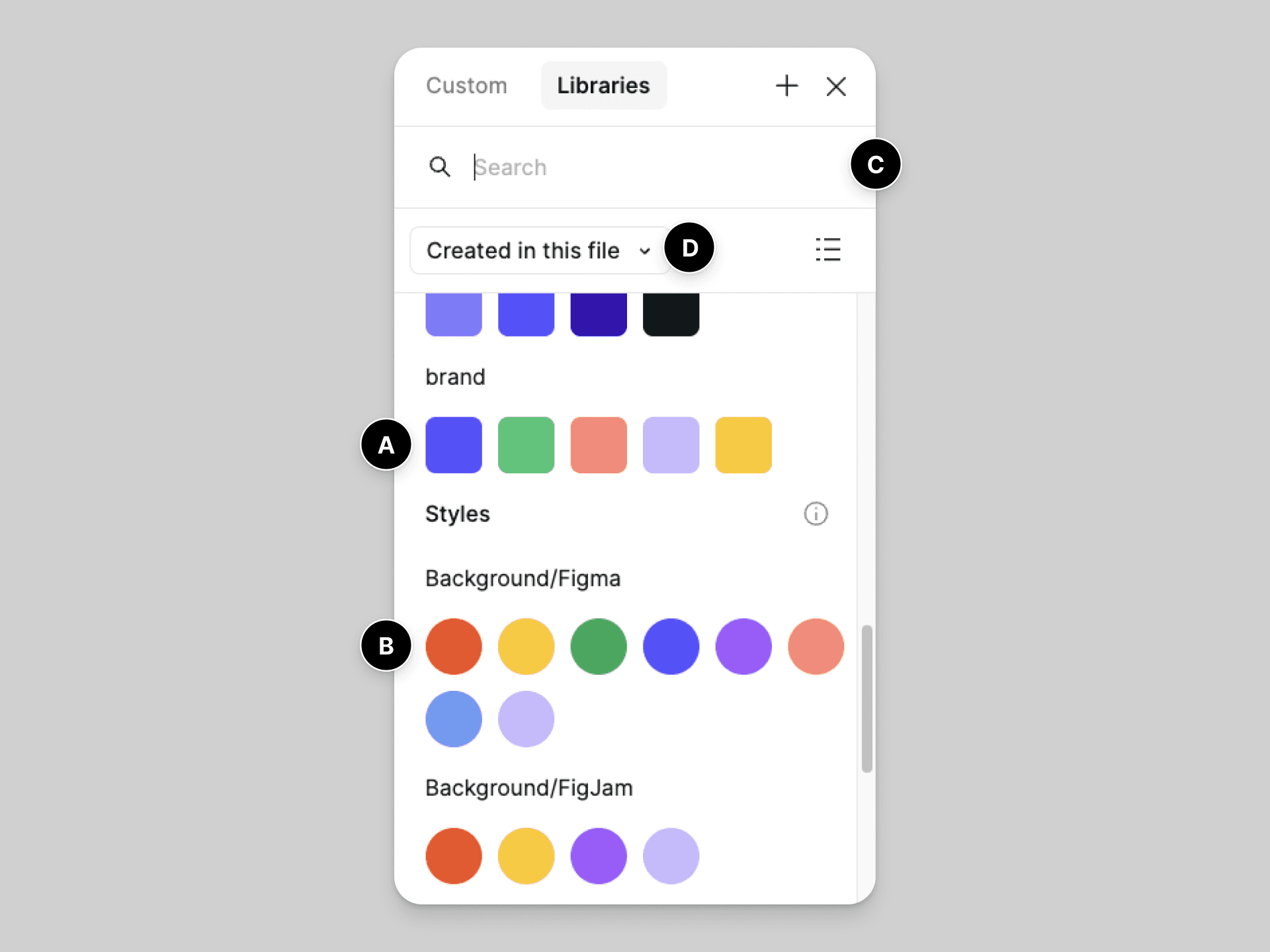
Using Figma Variables
TESTING
Refining Through Testing
Testing was an essential step to ensure the system was both practical and effective. We conducted usability tests with design and engineering teams to validate its impact.
Faster Design Iteration
Standardized components minimized redundant work and sped up design cycles.
Enhanced Accessibility
Adjusted contrast ratios and refined typography improved readability and inclusivity.
IMPACT
Seeing the results
Lessons
What I learned?
Building a design system is more than just creating components; it’s about fostering alignment and usability. A successful system should be adaptable, collaborative, and well-documented to maximize its value.


How do I draw Frames?
To draw a Frame, click on Layout in the Toolbar, then select Frame. Now, you can click and drag anywhere on the Canvas.
How do I add images?
To add an image, select any Frame, and either double-click on it, or go to the Fill property. In the Fill property, switch to the image icon. Here, you can upload images.
How do I add videos?
To add a video to your site, click the “Insert” button and navigate to the “Media” section. Then, drag and drop a video component onto the Canvas.